

A new e-commerce release can look flawless in Chrome, pass the team's local checks, and still fail where the money is made. A Safari customer may reach checkout and find that a payment control is invisible, a product gallery won't respond, or a sticky summary covers the submit button. The analytics dashboard then shows abandoned sessions, while the team searches for a pricing, copy, or campaign problem that is a browser rendering defect.
Cross browser compatibility means making sure customers can complete the same important tasks across the browsers and devices they use. It doesn't require pixel-perfect sameness. It requires functional parity, readable content, usable controls, stable layouts, and reliable journeys, with sensible fallbacks where engines differ.
For an SMB, compatibility is a business decision. A broken checkout, login flow, product filter, or lead form can damage trust before anyone reports the defect. Teams that connect browser support to analytics, conversion paths, and customer support can spend less effort on low-value edge cases while protecting the experiences that matter most.
Why Cross Browser Compatibility Still Breaks Launches
A launch-day failure often starts with a harmless assumption. The development team tests the storefront in Chrome, confirms that the product page and checkout work, and approves the release. Customers arrive from search, email, or paid campaigns, but Safari users encounter a different experience because a browser-specific layout or JavaScript behavior affects a critical control.
The page may still load. That makes the issue harder to spot. A missing animation is usually tolerable, but a product option that can't be selected or a payment step that can't be submitted turns a visual inconsistency into a lost transaction.
Practical rule: Treat every browser difference as important only when it changes what a customer can understand or do.
Cross browser compatibility is therefore more than a QA checkbox. It's an operating practice that aligns frontend implementation, testing, analytics, and support policy around the customer journey. The team decides which browsers and devices deserve first-class validation, then verifies that the baseline experience works before adding richer interactions.
The web has moved toward shared standards, but that progress hasn't eliminated implementation differences. The history of cross-browser compatibility shows how the industry moved from browser-specific behavior toward common specifications. The World Wide Web Consortium was founded in 1994, ECMAScript's first version was published in 1997, and the W3C standardized the Document Object Model to improve consistency across platforms. Major browsers still arrived with different engines and behavior profiles, including Internet Explorer in 1995, Opera in 1996, Safari in 2003, Firefox in 2004, Chrome in 2008, and Edge in 2015.
That history explains why “it works on my machine” isn't a release strategy. Use quality assurance best practices to connect testing with acceptance criteria, but make the acceptance criteria revenue-aware. Start with checkout, account creation, search, navigation, and contact flows. If those journeys work across the engines your customers use, a cosmetic difference in a secondary component can wait.
The Browser Landscape and Engine Reality
Browser share tells you where to begin, not how much coverage you have. StatCounter's August 2026 worldwide data records Chrome at 69.39%, Safari at 15.83%, Edge at 5.36%, Firefox at 2.98%, Samsung Internet at 2.01%, and Opera at 1.94%. Those figures represent roughly 98% of global browsing across at least six mainstream browsers, as reported in the browser compatibility market overview.
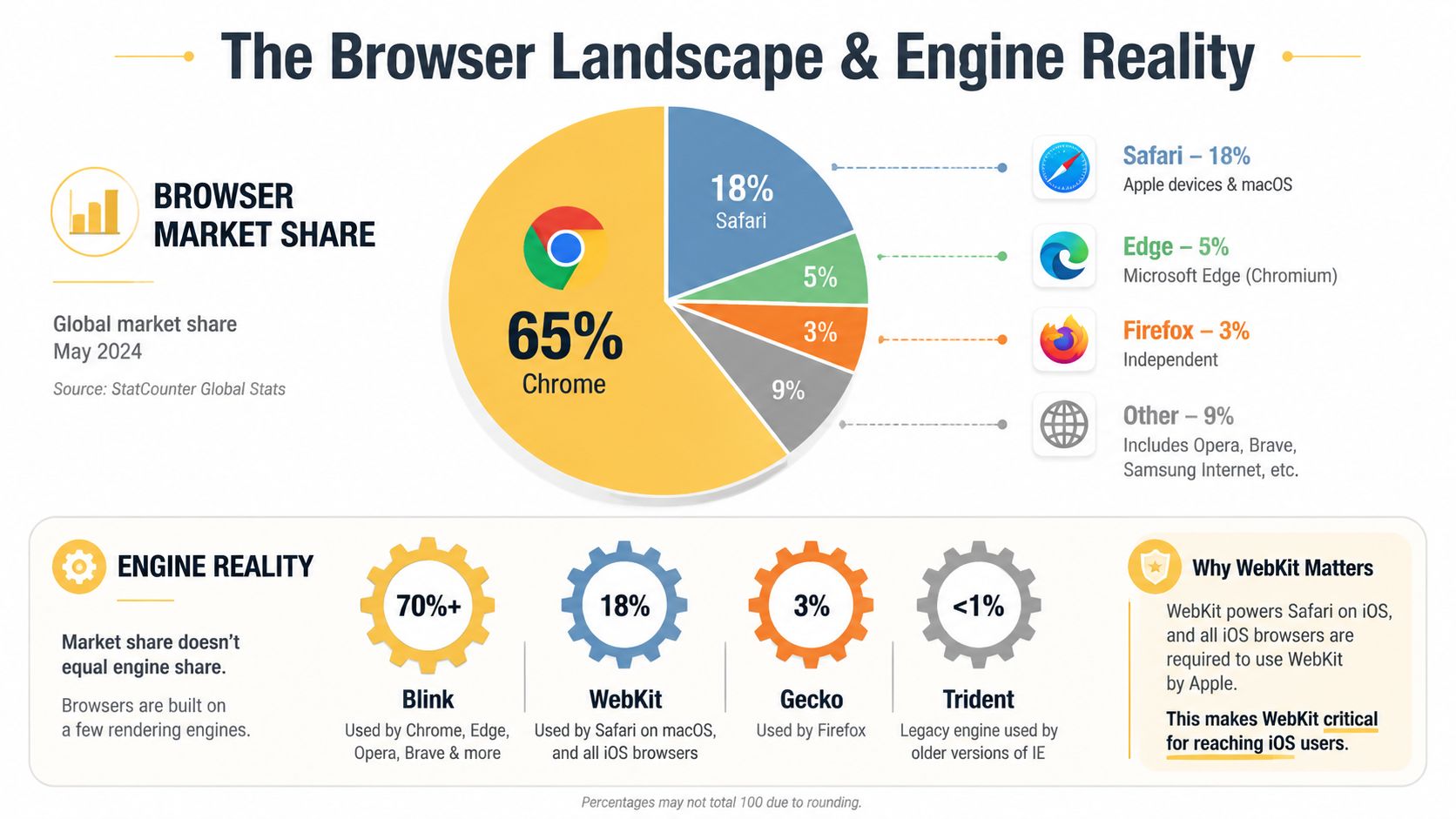
Chrome's dominance can tempt teams to treat Chromium as the web platform. That approach misses the customers who use Safari, Firefox, Edge, mobile browsers, and embedded WebViews. A browser matrix based only on brand names can also overstate coverage because several popular browsers share the same rendering path.
Engine coverage matters more than logo coverage
The principal modern rendering engines are Blink, WebKit, and Gecko. Chrome, Edge, and Brave primarily exercise Blink behavior, so testing all three may uncover browser configuration differences but won't give you three independent rendering implementations. A practical matrix should include a Blink browser, Safari or another WebKit target, and Firefox with Gecko. That spread is more useful for detecting differences in CSS layout, JavaScript execution, DOM behavior, and event handling, as outlined in this browser engine compatibility guide.
Safari deserves explicit attention for teams with iPhone and iPad customers. Mobile Safari and WebKit can expose problems that remain hidden in desktop Chromium testing, especially around viewport behavior, scrolling, form controls, and newer web APIs. WebViews deserve the same treatment because an in-app checkout or account flow can use an embedded browser context rather than the customer's usual browser.
For a practical overview of browser differences before you define a matrix, Simply Tech Today's browser comparison provides useful context. Then narrow the list using your own audience data, critical journeys, and support capacity. A small team doesn't need to treat every browser equally, but it does need to cover the distinct engines and devices that can affect revenue.
Teams designing or rebuilding an application should also document these decisions alongside their web app development platforms. The platform choice, supported browsers, WebView assumptions, and fallback strategy belong in the same delivery conversation.
Progressive Enhancement and Feature Detection Strategies
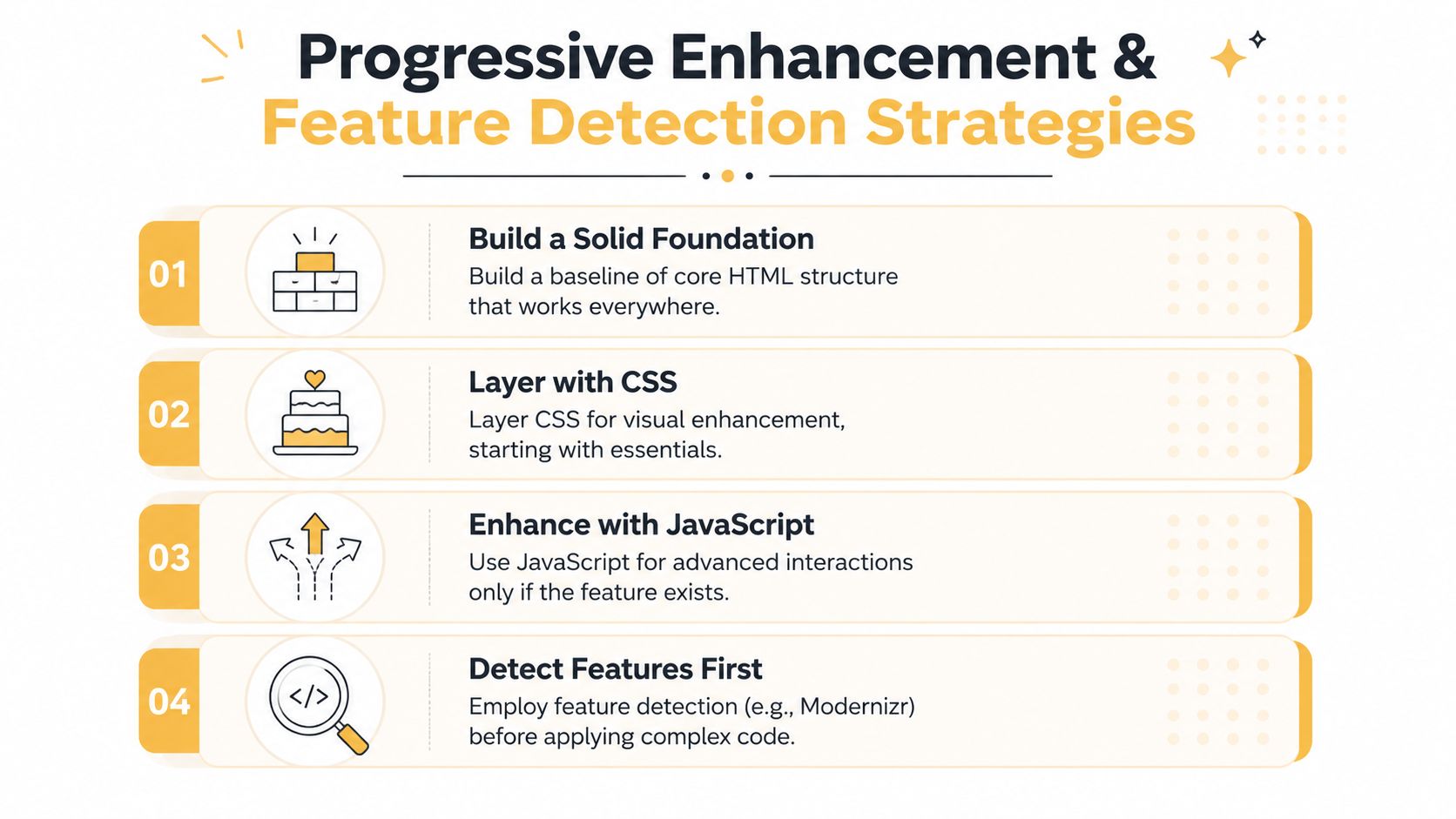
The most durable compatibility strategy starts with a working baseline. Build the page so that semantic HTML, ordinary links, native form behavior, and server-handled submission provide the essential path. Then add CSS and JavaScript enhancements only when the browser supports them.
This approach matters in commerce because the customer's primary job is usually simple. They need to inspect a product, choose an option, add it to a cart, enter information, and complete payment. A complex transition or gallery can improve the experience, but it shouldn't be the only way to reach the next step.
Build the fallback before the enhancement
Use CSS feature queries when a modern layout is helpful but not essential. A grid-based product listing can have a simpler block or flex layout as its baseline, then activate a richer arrangement inside @supports when the required feature exists. The fallback doesn't need to look identical. It needs to preserve hierarchy, readability, and interaction.
JavaScript should follow the same principle. Detect the capability you need instead of identifying the browser by its user-agent string. If the browser supports a particular API, initialize the enhanced behavior. If it doesn't, keep the native control, link, or server-rendered flow available.
A product gallery illustrates the trade-off. A touch-optimized carousel might use advanced pointer behavior, but the page should still expose product images through ordinary markup and usable controls. A checkout form might enhance validation in JavaScript, while the server remains responsible for validating and processing the submission.
Interop 2026 focuses on compatibility gaps in current features including anchor positioning, same-document View Transitions, the Navigation API, Scroll Snap, scroll-driven animations, WebRTC, WebTransport, and ECMAScript module loading, according to the Interop 2026 overview. That list is a reminder that “modern” doesn't automatically mean safe to depend on without a fallback.
Prefer functional parity over visual uniformity
A fallback is successful when customers can complete the task. It isn't a failure because one browser lacks a transition, uses a different native select style, or displays a simpler gallery. Problems arise when the unsupported feature removes the only visible state change, blocks keyboard access, or prevents form submission.
Before adopting an advanced API, answer three questions:
- Baseline path: Can a customer complete the journey with JavaScript disabled or the enhancement unavailable?
- Detection point: Can the code test the exact feature before it changes the interface?
- Recovery behavior: Does the interface provide a clear alternative when initialization fails?
That discipline also supports progressive web app benefits, where offline behavior, installation prompts, and device capabilities should supplement the core experience rather than replace it.
Testing Workflows for Manual and Automated Coverage
Testing becomes manageable when the team decides what deserves confidence first. Begin with a written support policy that names the engines, browser versions, devices, and embedded contexts the business supports. Use analytics and customer feedback to prioritize, but don't confuse traffic share with risk. A browser with less traffic can still matter if it serves a high-value checkout segment or an important business customer group.
Start with journeys, not pages
A page-by-page checklist produces a lot of activity without proving that customers can finish. Map the flows that create value:
- Browse and discover: Load category pages, search, filter, sort, and open product details.
- Select and purchase: Change variants, update quantity, add to cart, and move through checkout.
- Identify and submit: Create an account, sign in, reset a password, and submit forms.
- Recover from trouble: Handle validation errors, unavailable inventory, payment failure, and back navigation.
Run manual smoke tests on the most important browser and device combinations after a release candidate is available. Manual testing catches issues that automation often misses, such as clipped text, confusing focus states, awkward keyboard movement, unusable tap targets, and a consent banner covering the checkout action.
Automation should protect repeatable behavior. Playwright can run browser journeys across its supported browser projects, Cypress is useful for application-centered end-to-end checks, and cloud platforms can provide access to browsers and devices the team doesn't own. Choose based on the team's existing test style, debugging needs, and CI constraints rather than tool popularity.
Use automation for repetition and people for judgment
Automated checks should cover stable assertions such as:
- Navigation: Confirm menus, links, redirects, and back-button behavior.
- Forms: Verify validation, error messaging, keyboard entry, and successful submission.
- Commerce state: Confirm cart updates, totals, selected options, and order confirmation.
- Visual baselines: Compare important pages for missing elements, unexpected overflow, and layout shifts.
Visual regression tools can flag a changed screenshot, but a person still needs to decide whether the change is an intentional design update or a defect. Similarly, an end-to-end test can confirm that a button receives a click while missing the fact that the button is difficult to find or inaccessible by keyboard.
Standards-based test suites add another layer. Web Platform Tests assess browser feature support across web technologies, while Test262 measures JavaScript engine standards compliance. These resources help teams identify where feature detection, fallbacks, or progressive enhancement are appropriate, as documented in the browser and engine outcomes comparison.
Tooling and CI Integrations for SMB Teams
Small teams usually face two opposing pressures. They need enough browser coverage to protect checkout and account flows, but they can't afford a large maintenance burden or a test suite that makes every pull request painfully slow.
A sensible setup separates local speed from release confidence. Developers can run a focused Playwright or Cypress project locally, while CI runs the critical journey suite across the selected engine matrix. A cloud device service can fill gaps for real Safari hardware, mobile viewport behavior, and WebViews that local laptops can't reproduce reliably.
Compare tools by the failure you need to diagnose
| Tool | Pricing Model | Real Device Coverage | CI Integration | Best For |
|---|---|---|---|---|
| Playwright | Open-source framework, with infrastructure costs depending on execution environment | Local emulation is strong, real devices require additional infrastructure or a cloud provider | Works with common CI systems and parallel test jobs | Teams that want one end-to-end framework with browser automation |
| Cypress | Open-source test runner with optional paid services and infrastructure | Browser testing is available, while real-device breadth depends on connected or cloud infrastructure | Integrates with CI pipelines and dashboard workflows | Teams that prefer an interactive runner and application-focused debugging |
| Selenium | Open-source automation ecosystem, with execution infrastructure managed by the team or provider | Broad real-device coverage through compatible grids and cloud services | Mature CI integration through WebDriver-based grids | Organizations with established WebDriver suites and broad legacy support |
| BrowserStack | Commercial cloud service | Cloud access to real browsers and devices | Designed for CI execution and test orchestration | SMB teams that need broad device access without maintaining a lab |
| Sauce Labs | Commercial cloud service | Real-device and browser cloud offerings | Supports CI pipelines, reporting, and parallel execution | Teams that need centralized test reporting and managed infrastructure |
| LambdaTest | Commercial cloud service | Cloud browser and device coverage | Provides CI integrations and automated execution options | Teams comparing managed coverage and workflow fit across providers |
The table describes common positioning, not a universal ranking. Pricing, browser availability, concurrency, retention, and device catalogs change, so confirm the current plan details before committing.
Keep the pipeline proportional
Run a short smoke suite on every change when possible. Reserve broader visual and device coverage for release candidates, scheduled checks, or changes that touch checkout, navigation, forms, layout primitives, or browser APIs. Parallel execution can shorten feedback time, but it can also increase cloud usage and make flaky tests harder to diagnose.
Real devices matter for touch input, keyboard behavior, viewport changes, camera or payment flows, and embedded contexts. Emulators are efficient for broad responsive checks, but they aren't a complete substitute for hardware. The right balance depends on the user journeys and the support policy, not on a desire to test every possible combination.
A team may also use a delivery partner when it needs help connecting compatibility testing with application development, SEO, or conversion work. Up North Media offers custom web application development, data-driven SEO marketing, and AI consulting, which can support a broader digital strategy while the internal team owns the final browser policy and acceptance criteria.
Prioritized Compatibility Checklist for Dev Teams
Compatibility should run as a release discipline, not as a final afternoon of browser clicking. The checklist below is intentionally ordered by business impact. A team that completes the first items can make rational decisions even when its device inventory, automation budget, or release window is limited.
Before development begins
- Define the support policy: Record the browser engines, versions, operating systems, mobile devices, and WebViews the business will support.
- Connect coverage to value: Identify which browser and device segments complete high-value journeys, generate support requests, or show unusual abandonment.
- Map critical journeys: Document browse, search, product selection, cart, checkout, login, account recovery, and lead submission.
- Choose an engine-based matrix: Include distinct Blink, WebKit, and Gecko coverage rather than counting Chromium brands as separate rendering implementations.
- Set fallback expectations: Decide which features may degrade visually and which functions must remain fully available.
During implementation
- Build semantic foundations: Keep links, forms, headings, labels, and controls usable before enhancement code runs.
- Gate modern CSS: Use
@supportsfor layout and styling features that need a simpler alternative. - Detect JavaScript capabilities: Test the API or feature itself, then preserve a reliable fallback when it isn't available.
- Test critical states: Include empty carts, validation errors, loading states, failed payments, unavailable products, focus states, and back navigation.
- Run checks in CI: Automate the journeys that should never regress, then add visual comparisons for high-value pages.
Before and after release
- Smoke-test real devices: Check touch interaction, scrolling, keyboard behavior, viewport changes, and payment steps on priority hardware.
- Review visual differences: Separate harmless rendering variation from defects that hide content, block actions, or reduce comprehension.
- Monitor production signals: Watch browser-specific errors, checkout drop-offs, support tickets, and session recordings where appropriate.
- Feed findings back: Update the support policy and test matrix when customer behavior or product scope changes.
- Assign ownership: Name the person or team responsible for triage, reproduction, prioritization, and release sign-off.
The checklist works because it prevents two expensive mistakes. It stops teams from testing a huge matrix without knowing why, and it stops them from treating a single successful Chrome run as evidence that the customer experience is safe.
Making Compatibility a Revenue Protection Discipline
Cross browser compatibility belongs in the same conversation as checkout performance, accessibility, analytics, and release management. A browser defect can be technically small while carrying serious commercial consequences if it interrupts the moment when a customer chooses to buy, submit, register, or contact the business.
The practical standard is functional parity across the browsers and devices that matter to your audience. That means a simpler layout is acceptable when it preserves the journey. A missing enhancement is acceptable when the baseline remains clear. A broken button, inaccessible form, hidden price, or failed payment step is not.
Start with an audit of your current support policy. Compare it with browser-specific conversion paths, error monitoring, customer complaints, and the devices your team tests. Then invest in automation and real-device access according to the cost of failure, not according to a generic instruction to “test everything.”
Teams that make these decisions early ship with fewer surprises and explain their trade-offs more clearly. Compatibility becomes measurable operational work, with ownership, evidence, fallbacks, and a feedback loop after launch.
Up North Media can help your team build conversion-focused web applications, connect browser compatibility testing to broader SEO and analytics goals, and identify the technical risks that affect customer journeys. Visit Up North Media to discuss a practical support policy and testing approach for your next release.