

To get your website loading faster, you really only need to focus on three big things: optimizing your images, streamlining your website's code, and using a Content Delivery Network (CDN). Nailing these three areas will fix the most common performance hogs and seriously cut down your load times. The end result is a much happier user.
Why Website Speed Is a Game Changer for Your Business
Let's be honest, a slow website isn't just a minor headache—it's actively hurting your business. Every single second a visitor has to wait for your page to load, the chances of them clicking the "back" button and disappearing forever go way up.
If you run an e-commerce store, that means abandoned carts and lost sales. For a local plumber or roofer, it’s a lead that never filled out your contact form. Slow performance is literally pushing away your potential customers.
The stakes are higher than they've ever been. People expect websites to be lightning-fast, and search engines like Google have taken notice. They now use page speed as a major ranking factor, which is where a set of metrics called Core Web Vitals comes into play.
Understanding Core Web Vitals
Core Web Vitals are specific measurements Google uses to figure out how good a webpage's user experience is. They look at how quickly your page loads, how fast it becomes interactive, and whether the layout jumps around while loading. We've got a whole guide that dives deep into what Core Web Vitals are, but here's the short version: good scores help your SEO, bad scores hurt it.
The main metrics you need to know are:
- Largest Contentful Paint (LCP): This measures how long it takes for the biggest piece of content—usually an image or a large block of text—to show up on the screen.
- Interaction to Next Paint (INP): This is a newer metric that checks how responsive your page is. It measures the delay between a user's click or tap and the moment the page actually reacts.
- Cumulative Layout Shift (CLS): This one tracks how much your page's layout moves around unexpectedly as it loads. It's that annoying thing where you go to tap a button, and an ad loads above it, pushing the button down right as you tap.
The infographic below really drives home the connection between your site's speed and your business's success.
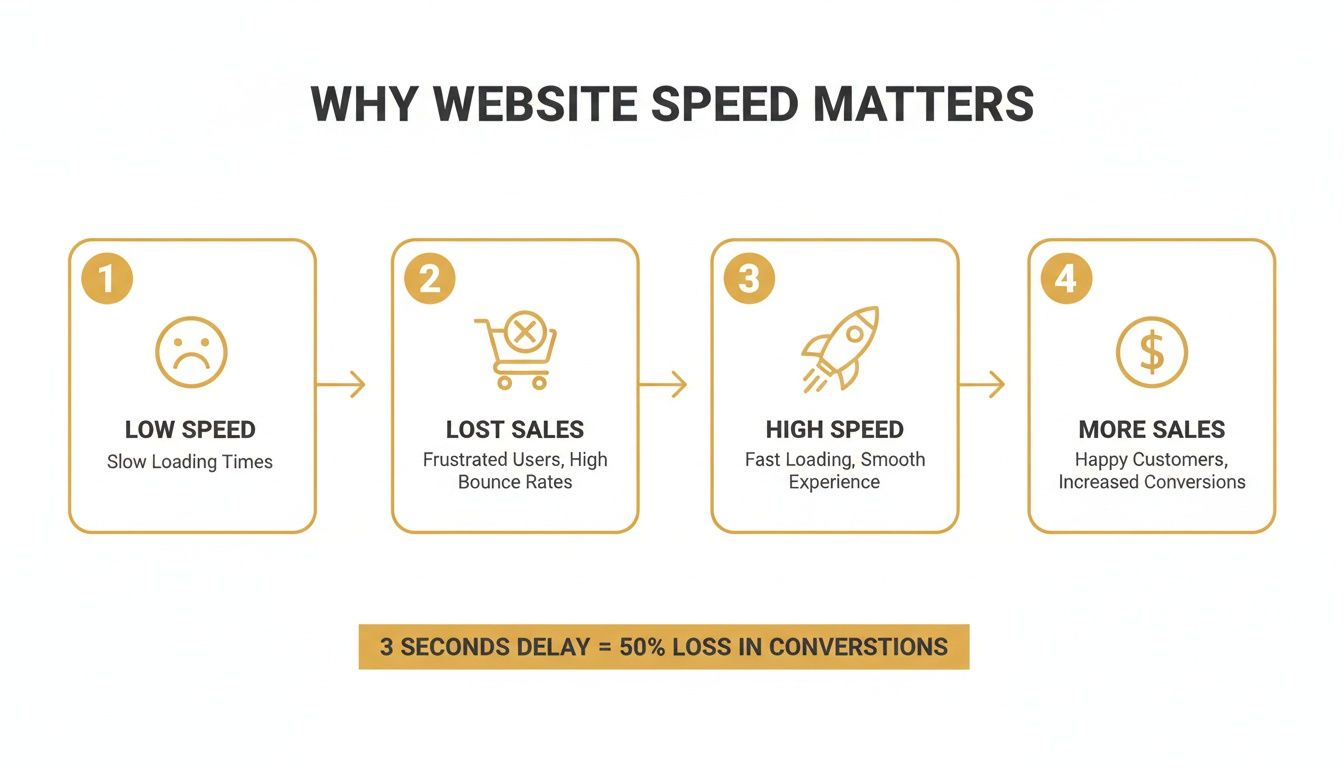
It’s a pretty clear flow: slow speeds kill your revenue, while a fast, snappy site is a direct line to more sales.
Measuring Your Website's Performance
You can't fix what you can't see. The first step is always to figure out where you stand right now. Tools like Google's own PageSpeed Insights give you a detailed report card on your website's performance, pointing out exactly what needs to be fixed.
It's a complete breakdown of your site's health, with specific suggestions and diagnostics that serve as a perfect roadmap for your optimization efforts. It shows you where you're struggling and what to work on first.
Optimizing Images and Media for Maximum Speed
If your website feels slow, there's a good chance that bulky images and media are the main offenders. Unoptimized images are like heavy baggage for your site—every visitor's browser has to download that extra weight, and it slows everything down.
Optimizing your media isn’t about sacrificing quality. It's about striking the perfect balance between great visuals and lean, fast performance. The impact is bigger than you might think, too. Compressing images can slash your site's loading time by up to 70%.
Research shows that mobile pages often take an average of 8.6 seconds to load, a delay frequently caused by oversized images. Switching to modern formats like WebP can shrink file sizes by 25-35% without any noticeable quality loss, helping sites load faster and dramatically lower their bounce rates. You can dig into more data about how load times impact user behavior over at kanukadigital.com.
Choosing the Right File Format
The first step in taming your media is picking the right format for the job. Not all image formats are created equal; each has specific strengths. Using the wrong one is a classic mistake that leads to unnecessarily large files.
For example, I’ve seen people save a simple logo with a solid background as a JPEG. That format is great for photos with lots of colors, but it’s really inefficient for simple graphics. A PNG or, even better, an SVG (Scalable Vector Graphic) would create a much smaller file and a sharper-looking image.
Here's a quick breakdown to guide you:
- JPEG (or JPG): Your go-to for photographs and images with complex color gradients. It uses "lossy" compression, which means it slightly reduces quality to get a much smaller file size. The trade-off is almost always worth it for photos.
- PNG: Perfect for graphics that need a transparent background, like logos or icons. It uses "lossless" compression, preserving every detail but often resulting in larger files than JPEGs.
- WebP: A modern format from Google that offers both lossy and lossless compression. WebP images are usually much smaller than JPEGs and PNGs while maintaining excellent quality. It’s now supported by all major browsers and should be your default choice for most web images.
- SVG: The best option for logos, icons, and simple illustrations. Since SVGs are vector-based (made of code, not pixels), they are incredibly small, can be scaled to any size without losing quality, and can even be styled with CSS.
Choosing the best format is a balancing act between visual needs and performance. The right choice depends entirely on what the image is and how you're using it.
Choosing the Right Image Format for Performance
| Image Format | Best For | Key Advantage | Consideration |
|---|---|---|---|
| JPEG | Photographs, complex images with many colors | Excellent compression for photorealistic images | Loses quality with each save (lossy); no transparency |
| PNG | Logos, icons, graphics requiring transparency | Preserves full quality and transparency (lossless) | File sizes can be significantly larger than JPEGs |
| WebP | All-purpose web images (photos and graphics) | Superior compression (25-35% smaller than JPEG/PNG) | Not supported by very old browsers (pre-2020) |
| SVG | Logos, icons, simple illustrations | Tiny file size, infinitely scalable, editable with code | Not suitable for complex photographs |
Ultimately, using WebP for most of your raster images and SVG for your vectors is a solid strategy for a fast-loading website.
Compressing Images Without Losing Quality
Once you've picked the right format, the next critical step is compression. This process intelligently strips unnecessary data from the image file to shrink its size. The goal is to make the file as small as possible without a visible drop in quality.
Luckily, you don't need to be a graphic designer to do this well. Plenty of online tools and plugins can automate the entire process for you.
Pro Tip: As a rule of thumb, try to keep all your webpage images under 200KB. For those big, full-width "hero" images at the top of a page, aim for under 500KB. This simple guideline can stop a single image from creating a performance bottleneck.
Tools like TinyPNG or ImageOptim are fantastic for one-off compressions. You just drag and drop your images and see the savings instantly. For WordPress users, plugins like Smush or ShortPixel can automatically compress every single image you upload—a true "set it and forget it" solution.
If you want to dive deeper, we have a complete guide on how to optimize images for the web.
Implementing Lazy Loading and Responsive Images
Beyond compression, there are a couple of advanced techniques that can give you a massive speed boost: lazy loading and responsive images.
Lazy loading is a clever trick that tells the browser not to load off-screen media until the user actually scrolls down to it. Why force someone to download a footer image when they're still reading the intro at the top of the page? By deferring these assets, the initial page load becomes much faster, which is great for Core Web Vitals like Largest Contentful Paint (LCP).
Responsive images solve another common performance killer: serving huge, desktop-sized images to mobile users. A phone on a 4G connection doesn't need a 2,000-pixel-wide banner. By using the <picture> element or the srcset attribute in your HTML, you can give the browser a menu of different image sizes. The browser then automatically picks and downloads the most appropriate version based on the user's screen, saving bandwidth and speeding things up for everyone on a smaller device.
Streamlining Your Website Code and Scripts

It’s not just your images. The very code that brings your website to life—every script, every third-party tool—adds weight. This forces a visitor's browser to work that much harder just to render the page, and that's a classic recipe for a slow site. If you want to improve website loading speed, you have to look under the hood.
Think of your website's code as a set of instructions for a browser. Messy, disorganized instructions with a bunch of extra steps will always take longer to process. Clean, efficient code, on the other hand, gets executed quickly. The result? A much snappier user experience.
The good news is you don’t need to be a senior developer to grasp the basics. A few simple tweaks to how your code is handled can make a huge impact.
The Power of Minification
A fantastic place to start is minification. It sounds technical, but the idea is simple: it strips out all the unnecessary characters from your code files without affecting how they work. We’re talking about extra spaces, line breaks, and developer comments—stuff that makes code readable for humans but is totally useless to a browser.
By removing all that "fluff," minification shrinks the file sizes of your HTML, CSS, and JavaScript. Smaller files download faster and get processed quicker, which directly translates to a faster website. If you’re on a platform like WordPress, most caching plugins have a minification feature you can turn on with a single click.
Minimizing JavaScript and enabling browser caching can improve site speed by 25-40%. With 47% of users expecting a site to load in under two seconds, every kilobyte saved matters.
For anyone managing a site without these automated tools, there are plenty of free online minifiers. Just paste your code in, and it'll spit back a compressed version ready to go.
Stop Scripts from Blocking Your Page
One of the biggest performance killers I see is render-blocking JavaScript. By default, when a browser hits a <script> tag, it stops everything. It won't render any more of the visible page until it downloads and runs that script. If the script is slow, your visitor is left staring at a blank white screen, wondering if your site is broken.
This is where two simple HTML attributes, async and defer, save the day. They tell the browser to handle scripts without bringing the whole rendering process to a halt.
async: This tells the browser to download the script in the background while it keeps rendering the page. Once the download is done, it pauses rendering to execute the script. It's best for independent scripts, like certain analytics tags, that don't depend on other elements on the page.defer: This also lets the browser download the script in the background, but it waits until the entire page is done parsing before it runs the script. This is almost always the better choice, especially for scripts that interact with your page's content.
Just by adding defer to your non-critical JavaScript tags, you let the important visual stuff load first. It dramatically improves how fast the page feels to your visitors.
Auditing Third-Party Scripts
Third-party scripts are bits of code from other services you drop onto your site. Think analytics tools, customer support chats, social media buttons, and ad trackers. They can be incredibly useful, but they're also a massive performance risk because you have zero control over how fast or well-written they are.
This "code bloat" from external scripts is a huge problem. In fact, bloated third-party scripts are responsible for 70% of mobile page load delays. A single slow script from an outside vendor can hold your entire site hostage.
You need to regularly audit every single third-party script running on your site.
- Identify All Scripts: Use your browser's developer tools or an online speed tool to get a full list of every external request your site is making.
- Evaluate the Value: For each script, ask yourself: is this absolutely essential for my business or the user experience? Is the value it provides worth the performance hit?
- Measure the Impact: Test your site's speed with a script on, then turn it off and test again. The difference will tell you exactly how much that one script is costing you. You might be shocked to find a social sharing widget is adding two full seconds to your load time.
- Find Lighter Alternatives: If a script is necessary but slow, look for a lighter alternative. Often, a simpler tool can give you 80% of the function with only 20% of the performance overhead.
For developers digging into specific technical issues, discussions like this GitHub issue on development performance can offer some great insights. Regularly cutting out unnecessary scripts is one of the most effective ways to keep your site lean and fast.
Leveraging Caching and Content Delivery Networks

Alright, once you’ve tightened up your site's code and assets, the next big performance win comes from a powerful duo: caching and Content Delivery Networks (CDNs). Working together, these two drastically cut down on the heavy lifting your server and a visitor's browser have to do. This is a game-changer when you need to improve website loading speed.
Think of it like this: without caching, your server is a chef forced to cook every meal from scratch for every single customer, every single time. It’s a recipe for disaster. Caching is like letting the chef prep popular dishes in advance, ready to serve in an instant.
Understanding Browser Caching
Browser caching is one of the simplest yet most effective speed boosts you can get. It’s like a regular at a restaurant who keeps a copy of the menu. When they return, they already know what they want and don't need to wait for a server to bring one over.
That's precisely how browser caching works. When someone lands on your site for the first time, their browser has to download everything—images, stylesheets (CSS), JavaScript files, you name it. Browser caching instructs the browser to save these files locally on the visitor's device.
The next time they visit, the browser just pulls those files from its local storage instead of downloading them all over again. The result? A much faster, almost instant experience for your loyal visitors.
Key Takeaway: A good browser caching setup can slash page load times for repeat visitors by 50% or more. It takes a huge load off your server and makes your site feel incredibly responsive to people who come back.
Most modern hosting providers and performance plugins (especially for platforms like WordPress) make it dead simple to set up caching rules. You can define how long different file types should be stored, which ensures users see fresh content when you make updates.
The Role of Server-Side Caching
While browser caching is fantastic for returning visitors, server-side caching is all about speeding things up for everyone—including first-timers. It tackles the processing bottleneck on your actual server.
Most modern websites, especially those built on a CMS like WordPress, are dynamic. This means every time someone requests a page, the server has to:
- Run a query to pull content from the database.
- Use PHP to process that data.
- Assemble the final HTML file from all the pieces.
- Send that completed file to the browser.
Doing this dance for every single visitor is slow and eats up server resources. Server-side caching shortcuts the whole process. It creates a pre-built, static HTML version of your page and serves that instead. This completely bypasses the sluggish database queries and PHP processing, making delivery nearly instantaneous.
Enter the Content Delivery Network
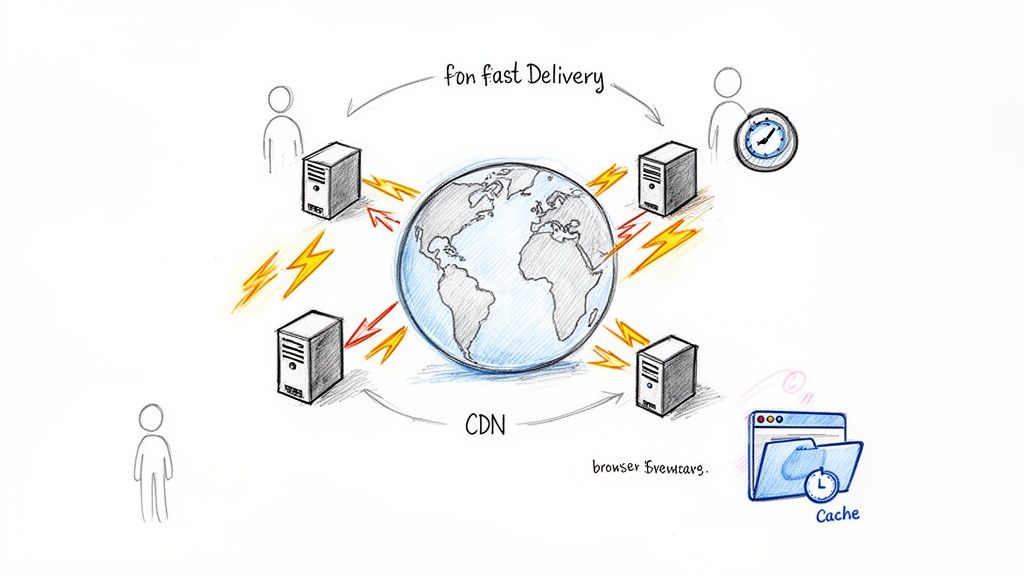
A Content Delivery Network, or CDN, takes this whole idea of caching and puts it on a global stage. Your website’s server sits in a single physical location—let's say it's in Chicago. If someone from Sydney, Australia, wants to view your site, their request has to travel halfway across the globe and back. That physical distance, known as latency, adds precious seconds to your load time.
A CDN solves this by creating a worldwide network of "edge servers." It copies your site's static assets (images, CSS, JS) and distributes them across these servers around the world.
Now, when that user from Sydney visits, their request doesn't travel to Chicago. It’s intelligently routed to the nearest CDN edge server—maybe one right there in Sydney. Delivering files from a server that's geographically close is unbelievably fast.
Here's what a CDN brings to the table:
- Reduced Latency: Serving assets from a nearby server drastically cuts down on that round-trip time.
- Lower Server Load: The CDN handles most of the traffic for your static files, freeing up your main server to focus on the dynamic stuff.
- Improved Reliability: If your main server ever goes down, a good CDN can often keep serving cached versions of your pages, keeping your site online.
Getting a CDN set up is much easier than it sounds. Services like Cloudflare or BunnyCDN can be integrated in minutes. Many even have free plans that are perfect for small and medium-sized businesses. It’s honestly one of the single most impactful changes you can make for a global audience.
Choosing the Right Hosting Foundation
Think of your hosting plan as the engine powering your website. You can have the slickest, most beautifully designed car, but if it has a lawnmower engine, it's not going anywhere fast. In the same way, all the on-site optimizations in the world can be totally undermined by a cheap, underpowered hosting server.
Too many businesses grab the cheapest shared hosting plan they can find, thinking they're cutting costs. In reality, that budget plan could be costing you far more in lost sales and frustrated visitors than you're saving. When your site is crammed onto a server with hundreds of others, you're all fighting for the same limited resources. It's a recipe for slow, unpredictable performance.
Beyond Shared Hosting: The Performance Hierarchy
As your website grows, its hosting needs will evolve. Moving up the hosting ladder is one of the most direct ways to boost your site's speed, especially if you've already tightened up your code and assets. Each step up offers more dedicated resources, better control, and most importantly, more speed.
Here’s a look at the typical progression:
- Shared Hosting: This is the entry-level option where your site shares server space and resources with tons of others. It’s cheap, but you’re at the mercy of the "noisy neighbor" effect—a traffic spike on another site can bring yours to a crawl.
- Virtual Private Server (VPS) Hosting: A significant step up. While you still share a physical server, a VPS carves out a dedicated slice of its resources (CPU, RAM) just for you. This isolation means other sites on the server can't tank your performance.
- Dedicated Server Hosting: You get an entire physical server all to yourself. This is the top tier for performance, security, and control, but it comes with a higher price tag and requires more technical skill to manage.
- Cloud Hosting: A modern approach that uses a whole network of connected servers. It’s incredibly scalable, letting you handle sudden traffic spikes by pulling resources from the larger cloud infrastructure.
Making the right choice here is a big deal. For a deeper dive into these options, our guide on how to choose a web hosting service can help you weigh the pros and cons for your business.
Key Performance Metrics to Look For
When you're shopping for a hosting provider, don't just glance at the price. You need to focus on the performance-centric features that directly impact how quickly your site loads. One of the most critical metrics is Time to First Byte (TTFB).
TTFB measures how long it takes for a browser to get the very first byte of data from your server after it makes a request. A high TTFB means your server is sluggish and slow to respond, creating a delay before your page even starts to render. A good host will consistently deliver a low TTFB.
Expert Insight: Your server's physical location really matters. If your primary audience is in the United States, choosing a host with servers in North America will slash latency compared to one with data centers in Europe. Physical distance creates delays.
Another vital factor is the server's technology stack. Make sure your host supports modern protocols like HTTP/3, which is built to be faster and more efficient than older versions. This protocol can seriously improve performance, especially for users on spotty mobile networks.
Finally, before you sign on the dotted line, it helps to have a handle on the basics of getting a website online, including understanding web hosting essentials. Having this foundational knowledge ensures you can ask the right questions and make a truly informed decision. Picking the right host isn't just a tech choice—it's a business decision that lays the groundwork for a fast, reliable, and successful website.
Common Questions About Website Speed
Trying to figure out website speed optimization can feel like learning a new language. You're hit with a bunch of technical jargon and conflicting advice that leaves you wondering where to even start. Let's clear up some of the most common questions we hear and give you some straightforward answers.
Getting these basics down is a huge step toward actually making your site faster for visitors.
Will Using Google Tag Manager Slow Down My Site?
This is one of the big ones, and the short answer is a classic: it depends entirely on what you put inside it.
An empty Google Tag Manager (GTM) container has a tiny, often unnoticeable, impact on performance. The real problem comes from the third-party tags—analytics trackers, ad pixels, chat widgets—that you manage with GTM. Load up a container with a dozen heavy scripts, and your site will absolutely slow to a crawl.
But here’s the interesting part: GTM is often better for performance than hard-coding those same scripts directly into your site’s <head>. Why? GTM loads its scripts asynchronously, which means it won’t block the rest of your page from rendering. It also gives you some slick controls to delay when certain tags fire, which is a key optimization trick.
Key Insight: Don't blame the toolbox; blame the heavy tools you fill it with. GTM itself isn't the problem. The performance drain comes from the sheer number and complexity of the third-party scripts you decide to run through it.
How Fast Should My Website Actually Be?
While "instant" is the dream, a realistic and excellent target is getting your page to load in under 2 seconds. Research has shown again and again that user patience falls off a cliff after the 3-second mark. If your site takes longer, you can bet that more than half your mobile visitors are bailing before it even finishes loading.
Instead of just chasing one number, it's smarter to focus on your Core Web Vitals scores. Google has already laid out what a "good" user experience looks like with these metrics:
- Largest Contentful Paint (LCP): Aim for under 2.5 seconds. This tells users the main content has shown up quickly.
- Interaction to Next Paint (INP): Get this under 200 milliseconds. This makes the page feel snappy and responsive, not laggy.
- Cumulative Layout Shift (CLS): Keep this score below 0.1. This stops those annoying layout jumps that drive users crazy.
If you can hit these numbers, you're giving people a fast, high-quality experience. Simple as that.
Can I Just Use a Plugin to Fix Everything?
For anyone on a platform like WordPress, performance plugins can feel like magic. They’re incredibly powerful and can handle a lot of the technical heavy lifting for you—minifying code, optimizing images, and setting up caching with just a few clicks. For most site owners, a well-configured plugin is an essential first move.
But a plugin isn’t a silver bullet. It can't fix fundamental problems like:
- A slow hosting plan: If your server is the weak link, no plugin in the world can make up for that shaky foundation.
- A bloated theme or page builder: Some themes are just built inefficiently, packed with slow code. A plugin can only put a bandage on that.
- Too many third-party scripts: Like we talked about with GTM, if you’ve loaded your site with tons of external trackers and widgets, a plugin can’t stop them from hogging resources.
Think of plugins as powerful assistants, not a complete fix. They do a great job automating best practices, but a truly fast website comes from a holistic approach. That means solid hosting, smart theme choices, and being mindful of every script you add to your pages.
At Up North Media, we know that a fast website is a profitable website. If you're tired of losing customers to slow load times, our team offers data-driven SEO and web development services to get you back in the race. Reach out for a free consultation today.