

The most common advice about technical SEO for SaaS goes like this: rebuild the front end with server-side rendering, and the indexing problems disappear. It sounds decisive, it hands an engineering team a clear mandate, and it's usually the wrong first move. Most of a SaaS product is application screens behind a login, and those screens carry no search demand, no query worth ranking for, and no business reason to sit in an index. Rebuilding them costs a quarter of engineering time and buys nothing.
The pages that actually earn organic revenue are a small set of public templates: pricing, comparisons, integration pages, documentation, and programmatic landing pages. Those deserve the engineering attention, and the app screens should be kept out of the way.
Which SaaS Pages to Audit First
Audit priority follows one calculation: the value of the query behind the page multiplied by the number of URLs the template controls. Sort your own pages against that math before you touch anything.
| Page type | Search intent | Should it rank? | Audit priority |
|---|---|---|---|
| Pricing page | Buyers comparing plans | Yes | Highest |
| Product comparison page | Alternatives and vs queries | Yes | Highest |
| Integration page | Tool-specific searches | Yes | High |
| Documentation | How-to and error queries | Yes | High |
| Programmatic landing page | Use-case and industry queries | Yes, if content is unique | High |
| Blog and guides | Informational queries | Yes | Medium |
| Signup and login | Brand navigation only | No, use noindex | Low |
| Authenticated dashboard | No public search demand | No, exclude from crawling | Exclude |
Why the ranking looks like this
Pricing and comparison pages sit at the decision stage, where a buyer has already shortlisted two or three vendors and is comparing line items. Each of those templates holds one or a handful of URLs, but the value per URL is the highest on the site. A pricing page that fails to render its plan table loses revenue directly, which is why it goes first even though it represents almost none of your total page count.
Integration and documentation pages work the other way. Each individual query is narrower, but one template fix can repair hundreds of URLs at once. Teams that ship hundreds of integration pages feel this immediately: a broken link pattern in the template multiplies by the size of the directory.
Programmatic landing pages earn a high rank only on the condition that each URL carries content a competitor can't copy. Spin up three hundred city or industry pages from one paragraph of boilerplate and you've built three hundred near-duplicates that compete with each other.
Rule of thumb: audit the top three page types first, then the template behind each one, and leave everything below the line alone until those are clean.
Signup, login, and dashboard routes belong in the exclusion column. Nobody searches for your login screen, and every crawl request spent on it is a request not spent on a pricing page.
How Google Crawls, Renders and Indexes a SaaS Site
Google's own documentation describes search processing as three stages: crawling, rendering, and indexing. Googlebot discovers and fetches a URL first, then queues eligible pages for rendering, executes the JavaScript, and uses the resulting HTML to find additional links and index content, as set out in Google's JavaScript SEO basics. Think of it as a shop with a locked back room: Google can read the storefront, but it only records what you let it see once it walks through the door.
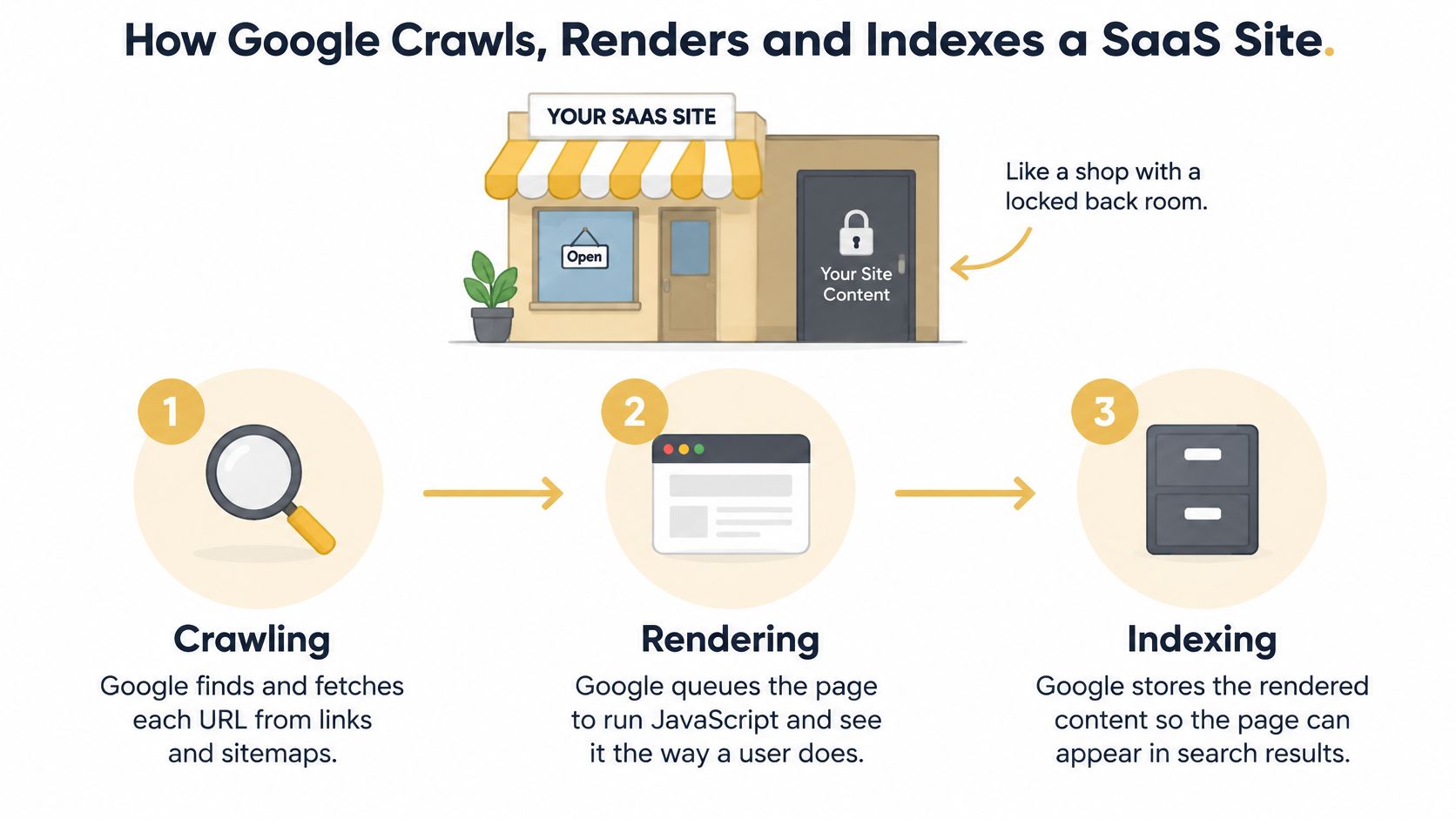
Where a pricing page falls out of the pipeline
Take a plan table built in the browser. A fetch call pulls plan data from an API, and the first response is an empty shell with a spinner and a title tag. Googlebot gets a 200 status, so the URL qualifies for rendering and the page isn't marked noindex. Rendering runs the JavaScript, and whether the plan names and prices end up in the rendered HTML depends on things you don't control from the marketing side: whether the API answers a Googlebot request, whether an error throws before the grid mounts, whether the endpoint requires a session.
If the API refuses the request, rendering succeeds and produces a page with no prices. Indexing then stores that emptier version. Nothing in the pipeline reported a failure. The URL is indexed, the status is 200, and the page ranks for nothing.
A dashboard route fails earlier. If it returns a redirect to a login wall or a soft error, it never reaches the rendering stage at all, which is the correct outcome for a page that shouldn't rank.
The four checkpoints you can test today
- Status code: the URL returns HTTP 200 rather than a redirect, a 404, or a login wall.
- Indexability: no noindex meta tag or header on any page you want in results.
- Rendered links: navigation and internal links exist as anchor elements in the rendered HTML, not only as click handlers.
- Resource access: CSS and JavaScript files are not blocked in robots.txt.
Two practical warnings come from the same documentation. Blocked CSS or JavaScript prevents correct rendering, and client-side analytics often don't represent Googlebot activity accurately. So don't trust your product analytics for crawl diagnosis. Server logs and Search Console are the honest record of what Google fetched and rendered.
Close the loop with URL Inspection in Search Console. It shows the rendered DOM, the resources that loaded, console errors and exceptions, which turns a vague "our pricing page isn't ranking" complaint into a specific failing resource or a missing element.
Building Site Architecture Google Can Crawl
Architecture is the cheapest part of this work and the part most SaaS sites get wrong. Every revenue page should sit within three clicks of the homepage, and every navigation path should use real anchor elements with href values. Crawlers don't click buttons, and a mega-menu built from click handlers is invisible to them.
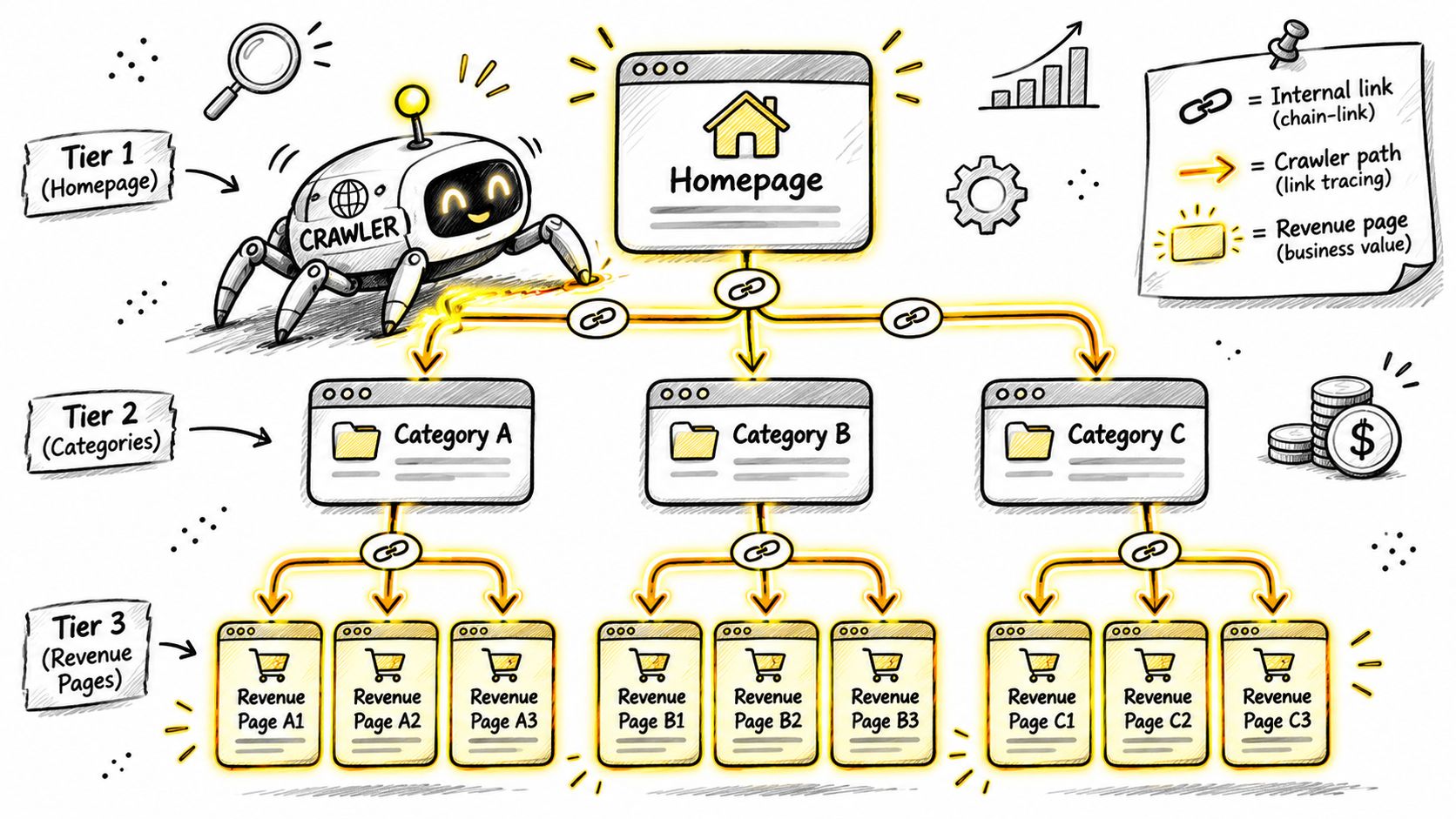
Once the links are real, decide where each kind of content lives. This choice has consequences you'll live with for years.
| Structure | Example pattern | SEO signal | Best use |
|---|---|---|---|
| Subfolder | /docs/ or /blog/ on the main domain | Shares authority with the marketing site | Documentation, blog and integration hubs |
| Subdomain | docs subdomain of the main domain | Often treated as a separate site, so authority is split | Help centers hosted by a third-party platform |
| Separate domain | Different domain name | Fully separate authority | Separate brands only |
The link patterns that prevent orphans
A hub page per use case, linking out to the feature and integration pages that support it, gives Googlebot a path to every commercial URL and gives readers a next step. Breadcrumbs that mirror the content hierarchy reinforce the same structure and give you a BreadcrumbList to mark up later.
Related-integration blocks do the most work for the least effort. A footer row of ten "works with" links at the bottom of each integration page keeps a directory of hundreds of URLs connected, which is the difference between a crawlable set and a pile of orphans.
Faceted filters on an integration directory are where this falls apart. Every filter combination generates its own URL, and a directory of four hundred integrations with five filter attributes can produce thousands of near-duplicate variations of the same content.
Check to run: crawl the site and list every page with zero internal links pointing to it. That list is your repair queue, and it's usually longer than anyone expects.
If parameter URLs already dominate your crawl, the prioritization approach in how to spend crawl budget where it pays covers which of those duplicates to consolidate and which to block.
The outcome you want is a map: where each page sits in the hierarchy, which template produced it, and which links need adding to connect it.
Choosing Rendering for Each Page Type
A pricing page that loads its plan table after a fetch call has already lost part of the search case. The first response contains a heading and a spinner, so Googlebot sees a promise of prices instead of the prices. That is a rendering decision problem, not a framework loyalty test. Google can process JavaScript when the content isn't blocked, so the practical question is which pages need their primary content in the first response.
Triage by page type. Public, revenue-critical pages should expose primary text, links, metadata and structured data in the initial HTML, delivered through server-side rendering, static generation, or selective pre-rendering. Authenticated dashboards and in-app interfaces can stay client-rendered, because nobody arrives at them from a search result.
| Page type | Rendering approach | Required in initial HTML | Should it rank |
|---|---|---|---|
| Pricing page | Server-side rendering or static generation | Plan names, prices, CTAs, metadata | Yes |
| Product comparison page | Server-side rendering or static generation | Comparison text, feature links, metadata | Yes |
| Integration page | Static generation | Integration description, setup steps, links | Yes |
| Documentation | Static generation | Article text, navigation links, metadata | Yes |
| Programmatic landing page | Server-side rendering or static generation | Unique copy, metadata, schema | Yes, if content is unique |
| Authenticated dashboard | Client-side rendering | Nothing required for search | No |
A pricing page that half-rendered
Here's the fix I'd apply before any framework migration. Move plan names, prices and CTA copy into the initial HTML, rendered on the server from the same source of truth the app already uses. Keep the interactive parts on the client: the monthly and annual billing toggle, the currency switcher, the "compare all features" expander. Readers still get the interaction. Googlebot gets the commercial content in the first response.
That pattern generalizes. Any component whose content a buyer would search for belongs in the initial HTML. Any component that only responds to input can stay client-side. A product comparison page needs comparison text and feature links in the first response. A docs article needs the article text and navigation links. A programmatic landing page needs unique copy and metadata that distinguish it from the rest of the template.
The test that decides it: disable JavaScript in the browser, load the page, and ask whether a buyer could still read the argument for your product and see the price. If the answer is no, that template needs server rendering.
Run three checks per template rather than arguing frameworks in the abstract. Does the initial response contain the core text? Does the rendered HTML match the page you intended? Do the crawl, render and index checkpoints hold? If your team is still weighing the two approaches on a per-route basis, server-side rendering versus client-side rendering lays out the trade-offs route by route.
Selective pre-rendering is often the pragmatic middle. Marketing routes and docs get static HTML at build time. The application keeps its client-rendered architecture. Nobody rewrites the dashboard.
The trade-off is control against complexity. Full server-side rendering simplifies the first response but asks more of the application stack. Static generation is fast and stable, yet it needs a build process for every route that changes. Client-side rendering keeps product engineering flexible, but it pushes search-visible content behind JavaScript. Google's guidance on machine-readable page content reinforces the broader point that important content should be available in a form search systems can read.
Choose rendering per route, then document the rule by template. The goal is a site where search-facing pages are readable on arrival and product surfaces remain interactive without paying for architecture they do not need.
Controlling Indexation and Structured Data
Indexation rules should follow page purpose. Pricing, product and documentation pages need different treatment from login screens, dashboards and filtered duplicates. robots.txt controls crawling, noindex excludes pages from indexing, canonical tags identify preferred duplicate URLs, and 404 or 410 responses signal retired pages. An XML sitemap lists URLs you want considered, but does not guarantee indexing.
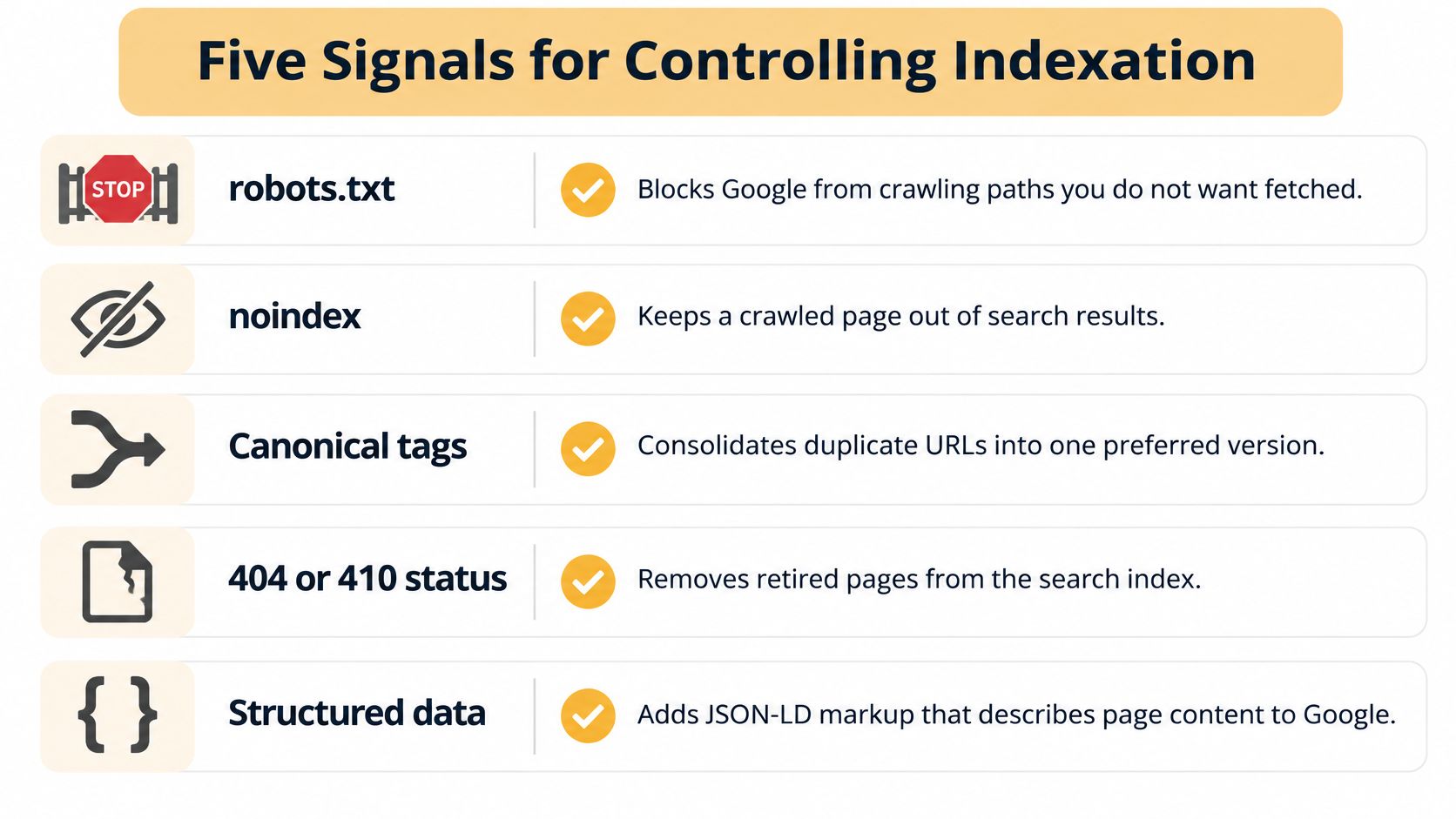
The robots.txt and noindex conflict
A staging robots.txt or aggressive disallow rule can block a route that also carries noindex. Google cannot fetch the page to see that directive. The URL can still surface in results through external links, because blocking crawling does not remove an indexed URL.
Keep pages crawlable while Google processes noindex.
For filtered URLs, distinguish duplicates from pages you want excluded entirely. Use canonicals for duplicate versions and noindex for exclusions, then check the outcome in Search Console. Adding directives without deciding which outcome you need makes troubleshooting harder.
Mobile is the version that gets evaluated
Google uses the mobile version of pages for indexing by default. Missing mobile content, blocked assets, inconsistent structured data and weaker internal linking can therefore undermine otherwise strong desktop pages.
The 2025 Web Almanac performance chapter found that only 48% of mobile websites achieved good results across Core Web Vitals, compared with 56% on desktop, while 77% achieved a good mobile Interaction to Next Paint score in 2025, up from 74% in 2024.
Check mobile parity by template. Prioritize whether product, pricing and documentation templates retain their content, links and markup before spending engineering time on routes you intend to exclude.
Schema mapped to page type
Match structured data to the content each template actually contains. Organization markup belongs on the homepage. Use BreadcrumbList on documentation, integration and blog pages where a visible hierarchy exists, and SoftwareApplication on the product page. FAQPage belongs only where readers can see the questions and answers.
Validate each template with the Rich Results Test. Markup must describe visible content; it cannot compensate for content missing from the page.
Work through these checks in order:
- Allow crawling on pages that need Google to process noindex.
- Apply noindex to signup, login and dashboard routes intended for exclusion.
- Set canonicals on filtered and parameter URLs that duplicate preferred pages.
- Include only indexable URLs in the sitemap.
- Check mobile content, links and structured data against desktop for each template.
- Validate schema for each relevant page type.
Page Speed and Core Web Vitals on SaaS Templates
Core Web Vitals are field thresholds, judged at the 75th percentile, which means a page has to perform well for at least three-quarters of measured users rather than on one developer laptop. Google's stated good targets, published in its guide to Core Web Vitals, are straightforward:
| Metric | Good threshold | Typical SaaS cause |
|---|---|---|
| Largest Contentful Paint (LCP) | 2.5 seconds or less | Oversized JavaScript bundles and third-party scripts |
| Interaction to Next Paint (INP) | Under 200 milliseconds | Long main-thread tasks from dashboards or personalization |
| Cumulative Layout Shift (CLS) | Under 0.1 | Late-loading fonts, banners or pricing widgets |
The cause list is what makes SaaS different from a content site. A hero image is rarely the LCP problem. The problem is a bundle carrying a chat widget, three analytics tags and a personalization script that all compete with the hero before anything paints. INP suffers on templates that hydrate a pricing calculator or a feature comparison table on first load. CLS comes from the banner that slides in after a promotion API responds, or the font swap that shifts the plan cards.
Segment before you optimize
Averaging the whole domain hides the failures that matter. Group real-user measurements by template, device, geography and connection type, then rank routes by how badly they fail rather than by traffic volume alone. A pricing page at the 60th percentile and an integration directory at the 10th percentile need different fixes, and a domain-wide average tells you neither.
Start with mobile routes on any product with consumer or global traffic, since headroom there tends to be thinner and that's the version Google evaluates.
If instrumenting a field data pipeline is new to your team, the setup in measuring your website's performance shows how to separate lab runs from real-user data so template comparisons mean something. And if you're still deciding what the metrics measure, what Core Web Vitals actually measure covers the definitions before you start changing code.
Fix order for a SaaS template
- Code-split noncritical JavaScript. Move chat, personalization and A/B tooling out of the critical path.
- Preload the LCP resource once you've identified it in field data, not before.
- Reserve dimensions for images, banners and pricing widgets so nothing moves after paint.
- Defer third-party tags until after the main content renders.
- Reduce synchronous client-side work on templates that hydrate interactive tables.
Search Console classifies pages as good, needs improvement, or poor using these thresholds, which makes the report usable as release monitoring rather than a one-time audit. Check it after each deploy, not once per quarter.
Start Your Technical SEO Audit This Week
The pricing template first. Everything else follows from what you find there. A SaaS site loses visibility in a small number of repeatable places, and the order below works because each step narrows what the next one has to cover:
- List the page types from the first table and export their URLs from the sitemap.
- Run the crawl, render and index checks on the top three templates.
- Fix architecture and rendering for the revenue pages.
- Clean up indexation signals and add schema per template.
- Fix Core Web Vitals on the worst-performing templates first.
- Recheck each fixed template in Search Console to confirm the change landed.
Step two is where teams save or lose weeks. Rendering checks on three templates tell you whether you have a sitewide problem or a per-template one, and that answer decides whether step three is an afternoon of patching or a quarter of engineering. Skip the full-site crawl until you know which it is.
Measurement starts before the fixes, not after. Track indexed pages, impressions and rankings for pricing and integration pages monthly, and watch the Core Web Vitals report for the templates you changed, comparing new field data against a recorded baseline. Our SEO reports track organic traffic, keyword rankings, conversion rates and ROI, and the value of that reporting is that it forces a comparison instead of a vibe.
Set a review date four weeks after each release. Field data needs that long to accumulate enough users to move a percentile, so a single lab run on launch day proves nothing either way.
Where the effort usually goes: most SaaS teams find a broken rendering path on the pricing template and a thousand uncrawled integration URLs. Fix those two things and the rest of the list gets shorter.
That's the same territory our website optimization service covers, fixing the technical issues that stop search engines from finding and ranking a page properly, and it's usually a template-level repair rather than a framework migration. If the commercial side of your pipeline needs attention at the same time, commission-only prospecting for SaaS startups is worth a look so that spend follows results rather than activity.
One decision to make today: fix the pricing page template first, and record baseline numbers for indexed pages, impressions, rankings and Core Web Vitals this week. Those numbers are the only way you'll know whether the work paid for itself.
Up North Media works on exactly this layer: rendering, indexation, internal links and template performance for SaaS and software companies, plus the reporting that shows whether a change moved anything. If you want an outside read on which templates are costing you visibility, the engagement starts with an audit of your current performance, competitors and improvement opportunities, then a customized roadmap built around your goals that your engineers can act on directly. Free consultations are available.