
You've added sharp product photography, built landing pages, and published helpful content. Yet when you inspect Google Search Console, the pages may earn impressions while the images bring little meaningful discovery. A closer audit often reveals the cause: filenames such as IMG_4821.jpg, empty alt fields, and product variations that all use the same generic description.
That gap matters because search engines can see the pixels, but they still need text and page context to understand what an image contributes. Image alt text SEO is the practical bridge between a visual catalog and the text-based signals used for accessibility, indexing, and visual search. Done well, it helps people who can't see the image and gives search systems a clearer description of its purpose.
The Image Search Problem You Might Not Know You Have
A small retailer discovers the issue while reviewing a product page for a new collection. The page has polished photographs of a navy sectional sofa, a close-up of its woven fabric, and a room scene showing the sofa beside a coffee table. The page title says “Modern Navy Sectional Sofa,” but the image fields are blank. Google can read the product copy, yet it receives little direct information about what each photograph shows.
The owner searches for the product in Google Images and finds competitors instead. Nothing is technically broken. The images load quickly, the page looks professional, and customers can understand the photos. The problem is that the business hasn't supplied a useful text alternative for those visuals.
Google's Image SEO documentation identifies alt text as the most important image metadata attribute and explains that it supports both accessibility and image-search understanding. That guidance reflects a durable principle: descriptive, context-aware text is more useful than a string of repeated keywords.
Why visual pages need textual context
An image can support several jobs on the same page. A product photograph may show color and shape. A diagram may explain a process. A linked banner may direct visitors to a category. A decorative flourish may add visual polish without carrying information.
Those functions require different treatments. A product image needs a concise description of the item. A decorative shape usually needs an empty alt value so assistive technology can skip it. A linked image should describe the destination or action, not merely the artwork.
Practical rule: Treat every image as part of the page's information architecture, not as a file that happens to sit beside the copy.
File naming also belongs in the workflow. Descriptive filenames won't replace alt text, but Transactional LLC's image naming tips provide a useful companion practice for making image assets easier to manage and interpret. Start with filenames that identify the subject, then write alt text based on what the image means on that specific page.
You can apply the first fixes today. Find the images on your highest-value pages, identify their purpose, and replace empty or generic fields with short descriptions that a person could understand without seeing the image.
What Image Alt Text Actually Does
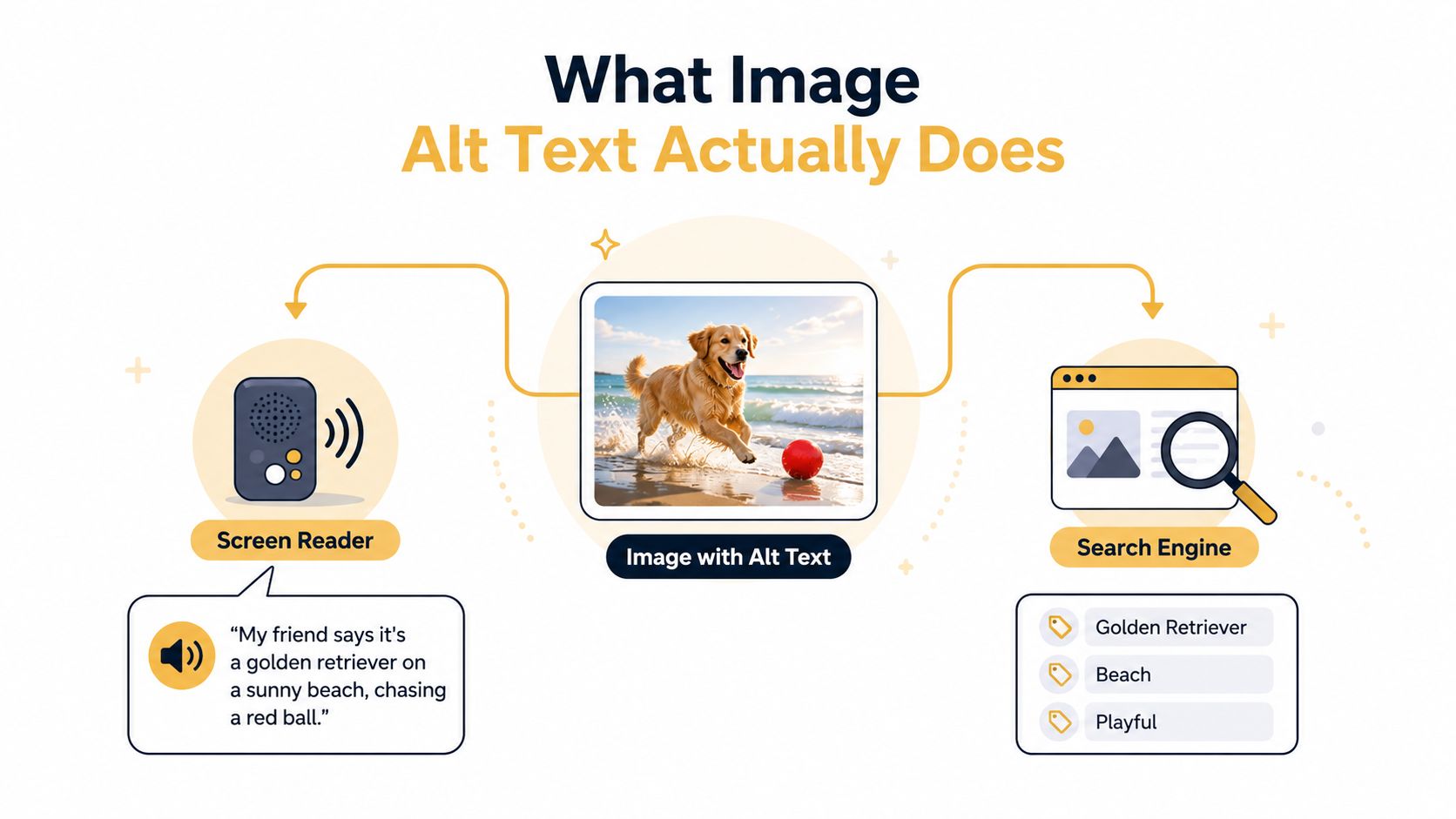
Think of a screen reader user calling you while looking at a page you can see. You'd describe the important visual information so your friend could form a mental picture and understand why it matters. You wouldn't say, “There's an image.” You'd say, “A golden retriever runs across a sunny beach while chasing a red ball.” That spoken description is the model for useful alt text.
In HTML, the text sits inside the image element's alt attribute. A simplified example looks like this:
<img src="red-running-shoes.jpg" alt="Red mesh running shoes with white sole, side view">
The browser can use that text when the image doesn't load, and assistive technology can read it aloud or present it through a braille display. Search engines can also use it as a textual signal about the image and its relationship to the surrounding page. Google describes alt text as supporting both users who can't see images and systems trying to understand image content through Google Images guidance.
What alt text is not
Several nearby elements perform different jobs:
- Filename: Helps organize the asset and may provide supporting context, but it isn't a substitute for the
altattribute. - Caption: Appears visibly on the page and can add explanation, attribution, or context for every reader.
- Title attribute: May create a tooltip, but it doesn't provide the same dependable accessibility function as alt text.
- Nearby copy: Explains the broader topic and can clarify details that would make the alt text unnecessarily long.
A useful description doesn't copy the page title onto every image. If a page contains five photographs of one product, each description should reflect the subject and role of the individual image. “Navy sectional sofa in a bright living room” communicates something different from “Close-up of woven navy upholstery.”
The strongest implementation serves both audiences with one concise sentence. Accessibility gives the description its purpose, and SEO gives it discoverability context. Neither requires keyword stuffing.
Why Missing Alt Text Is Still a Widespread Problem
The web has improved, but missing and empty alt attributes remain common. The 2024 Web Almanac reported that 69% of images passed Google Lighthouse's alt-text audit, compared with 59% in 2022; 15% still had no alt text, and 30% of alt attributes were empty on desktop and mobile sites. The figures appear in the independent accessibility analysis from Alt Audit's 2026 alt-text trends guide.
A later WebAIM Million-based analysis reported that 53.1% of homepages had at least one image missing alt text. Those pages averaged 66.6 images, with 10.8 images missing alt text per page, or 16.2% of images. The same source frames the issue as a continuing implementation gap across highly visible pages, particularly where businesses depend heavily on product, editorial, or service imagery.
The workflow creates the gap
Teams don't omit alt text because they reject accessibility. The field disappears during production:
- CMS defaults: Media uploads may leave the field blank unless someone completes it manually.
- Hidden editor controls: WYSIWYG interfaces can place alt text behind an image settings panel that content authors rarely open.
- Fast publishing cycles: Writers and merchandisers often prioritize price, copy, and launch timing, then postpone image metadata.
- Template duplication: A theme may reuse one generic value across several assets or fail to expose fields for background images.
The consequences affect two groups. Search engines receive less information about image subjects and page context, while screen-reader users encounter missing or unhelpful alternatives. For an e-commerce page, that can make product comparison harder. For a service page, it can remove meaningful visual evidence about a project, location, or process.
| Root Cause | Where It Happens | SEO Impact | Accessibility Impact |
|---|---|---|---|
| Empty upload fields | Media libraries and product catalogs | Images provide weaker subject signals | Users may hear no meaningful description |
| Reused generic text | Product variants and templates | Images become less distinct and less relevant | Users can't tell similar visuals apart |
| Decorative assets treated as informative | Icons, separators, and background graphics | Noise can dilute page interpretation | Screen readers announce irrelevant elements |
| Text embedded in images | Charts, banners, and screenshots | Important visual information may be inaccessible to crawlers and users | Users miss words that aren't available elsewhere |
The fix is operational. Add alt text to the publishing checklist, make the field visible in the CMS, and review templates that generate images automatically.
How to Write Alt Text That Works
Start with the image's function, not the object in isolation. Ask what the visitor needs from the visual.
1. Identify the job
An image generally informs, illustrates, links, or decorates. A product photograph informs the buyer about the item. A hero banner may illustrate a service and link to a category. A simple divider decorates the page.
This first decision prevents a common mistake, writing a detailed description for an image that carries no information or using a sales slogan where a functional description belongs.
2. Put the important detail first
Lead with the subject and the detail that changes the user's understanding. For a product, that may be the type, color, material, or angle. For a chart, it may be the topic and the main comparison. For a linked image, it may be the destination.
3. Remove filler
You usually don't need to begin with “image of” or “picture of.” Screen readers already identify the element as an image in their own way. Use direct language instead.
Aim for concise writing, with several expert guides recommending roughly under 125 characters to reduce the risk of truncation in screen readers and snippets, as summarized by AutoAlt's alt-text SEO guidance. That's a practical guideline, not a command to omit necessary information.
4. Match the page, naturally
Use a relevant product name or topic when it accurately describes the image. Don't paste the target keyword into every field. “Red trail running shoes on rocky path” is useful. “Best red trail running shoes buy red running shoes online” is not.
| Rule | Weak Example | Stronger Rewrite |
|---|---|---|
| Describe the image's function | image of a banner | Online bookkeeping services for small businesses |
| Lead with the main subject | A photo showing something blue in a room | Blue velvet armchair beside a floor lamp |
| Remove filler words | Picture of a lemon tart dessert | Lemon tart topped with powdered sugar |
| Distinguish product variants | Running shoes | Black women’s running shoes with pink heel detail |
| Support an infographic | SEO chart | Infographic comparing technical SEO, content, and links |
| Skip purely decorative graphics | Yellow abstract shape | alt="" |
Complex visuals need a second layer
A chart, map, or screenshot may contain more information than a short alt attribute can carry. Keep the alt text focused on the visual's role, then provide the detailed data or transcript in visible text, a caption, or a linked accessible alternative.
Decorative icons should use alt="", not a guessed description. Empty alt tells assistive technology that the image adds no information and should be skipped. Don't leave an informative image empty just because the copy nearby feels similar. If the visual changes the user's understanding, describe it.
Finally, read the result without looking at the page. If the sentence feels like a keyword list, a file label, or a duplicate of the headline, rewrite it.
Accessibility First or SEO First
The usual advice says that accessibility-friendly alt text automatically satisfies SEO. That's often true when the page is simple, but the two priorities can diverge on commercial pages.
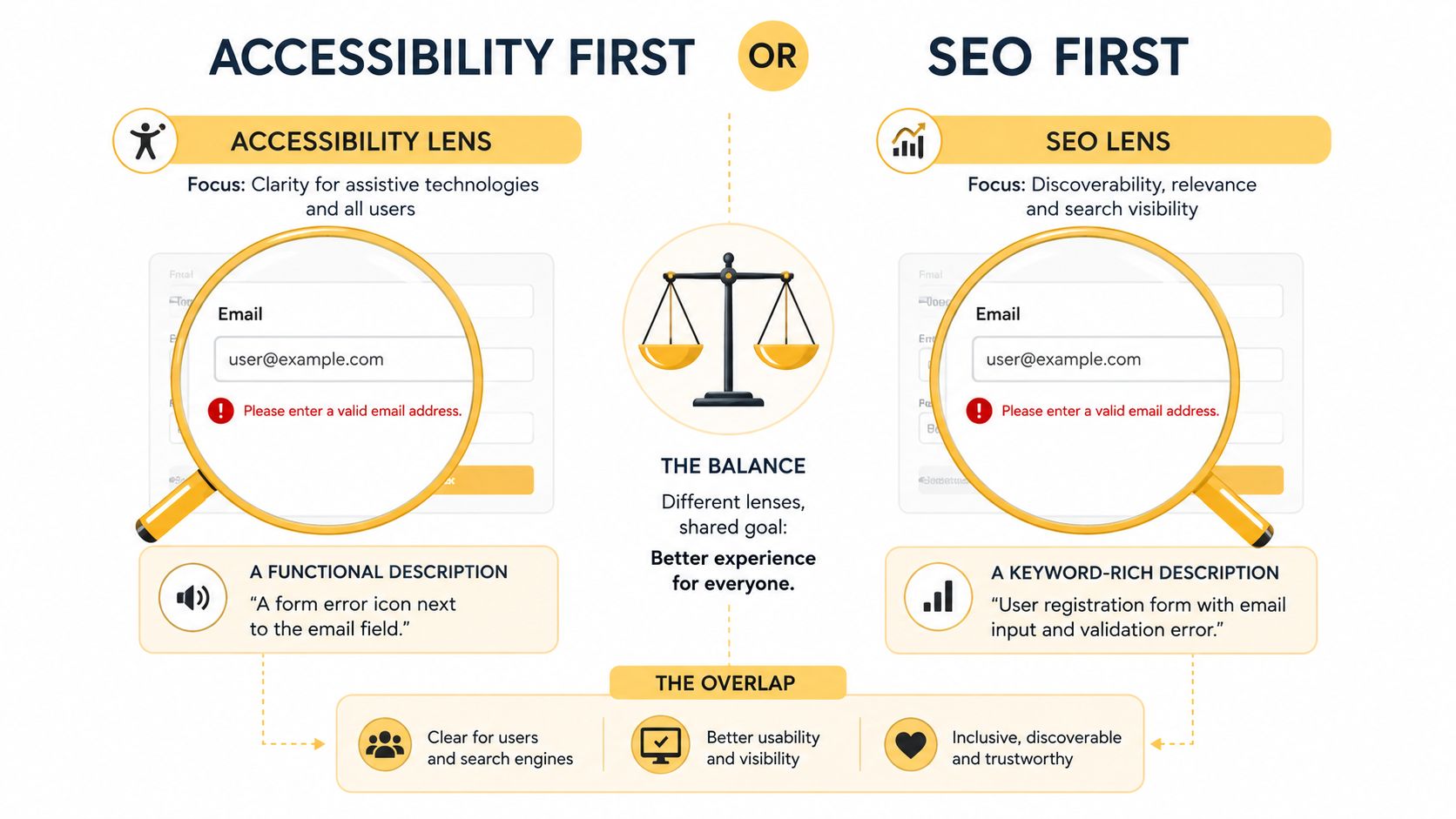
A screen-reader user shopping for shoes needs a literal description that supports comparison: “Red mesh running shoes with white sole, side view.” A searcher using image search may respond to a more page-specific phrasing such as “Men's lightweight red trail running shoes, TrailRunner X2.” The first emphasizes visual and functional clarity. The second adds product intent and a model name.
The answer isn't to choose marketing language over accessibility. Start with what a person needs to understand, then add a short identifying detail when it's accurate.
Use the right lead for the page
On a product detail page, literal description should lead because shoppers need to distinguish color, material, angle, and use. Add the product name or model after that description if it helps identify the item.
On an editorial page, describe the event or concept shown, then connect it to the article's subject. On a service page, explain what the image demonstrates, such as a completed kitchen renovation or a technician inspecting an HVAC unit. On a decorative asset, use alt="" instead of forcing SEO language into a meaningless graphic.
The same principle applies to accessibility compliance. Review your implementation alongside resources such as Up North Media's website accessibility compliance guide, especially if your team manages templates, forms, or interactive components as well as images.
Use this test: If removing the keyword would make the description less accurate, keep it. If removing the keyword changes nothing, it probably doesn't belong.
Surrounding context matters, too. Recent guidance emphasizes that captions, nearby paragraphs, and the image's function can contribute more meaning than the alt attribute alone, while short natural descriptions can be preferable to long keyword-heavy text, as explained in Nautilinks' alt-text overview. Write for the person first, then make the wording specific enough for retrieval systems to understand.
Adding and Updating Alt Text in Your CMS
The fastest implementation is usually inside the CMS your team already uses. Open a representative page, edit one image, inspect the published HTML, and confirm that the alt attribute contains the intended text. Don't assume a plugin or theme has handled every image type.
WordPress
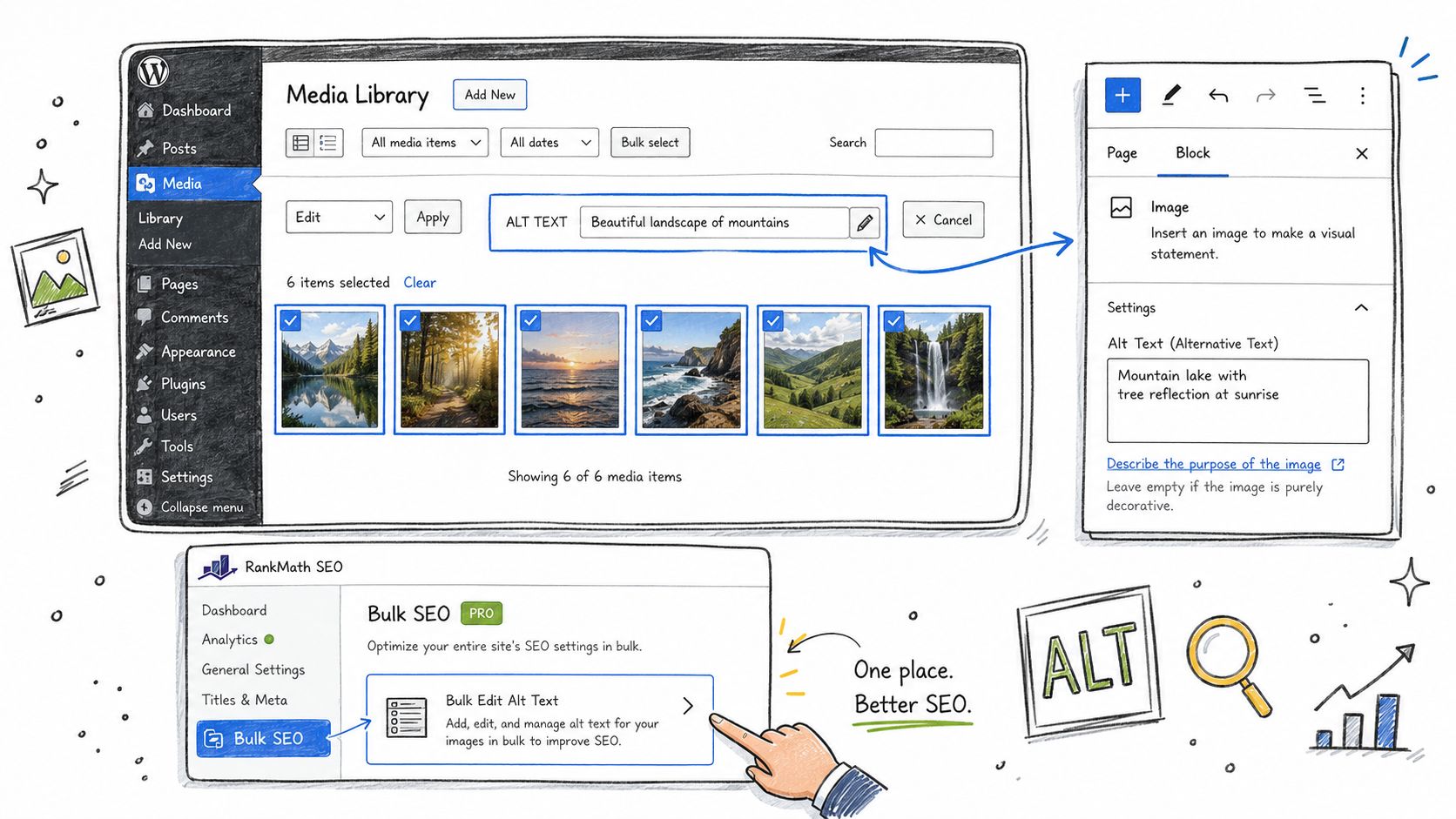
In the Media Library, open an image and complete the Alternative Text field. For new posts, select the image in the Block Editor, open the image settings panel, and enter the description there. SEO plugins such as Yoast SEO and Rank Math can surface image-related checks, while an accessibility checker can help identify missing attributes across templates.
Avoid treating the Media Library description as a universal answer. The same asset may serve different purposes on different pages, so check the context where it appears. A photo used as a product thumbnail may need a different description from the same photo embedded in a buying guide.
Shopify
Open Products, select the relevant product, and edit the alt text for each product image. Repeat the review for collection hero images and blog post images. Product variants deserve special attention because repeating one description across color or angle variations makes it difficult for users and search systems to distinguish them.
Some theme-controlled images, including promotional sections or background visuals, may not expose a normal alt field. If the theme renders an informative image through Liquid or CSS, a developer may need to change the markup or provide an accessible text alternative. For practical guidance on broader image implementation, BEDHEAD's advice on optimizing images for mattress retail offers a useful industry-specific reference.
Webflow and CSS backgrounds
In Webflow, select the image in the Designer and open the element settings panel. Enter custom alt text for static images. For CMS-driven images, connect the alt field to a dedicated plain-text CMS field when the image title isn't descriptive enough.
CSS background images don't have a native alt attribute. If the background is decorative, keep it decorative and ensure the surrounding content carries the meaning. If it communicates essential information, add visible text or an appropriate ARIA-labelled element rather than hiding the only explanation inside CSS.
A short visual walkthrough can help editors find the correct field without changing the page layout:
Auditing Your Existing Images for Quick Wins
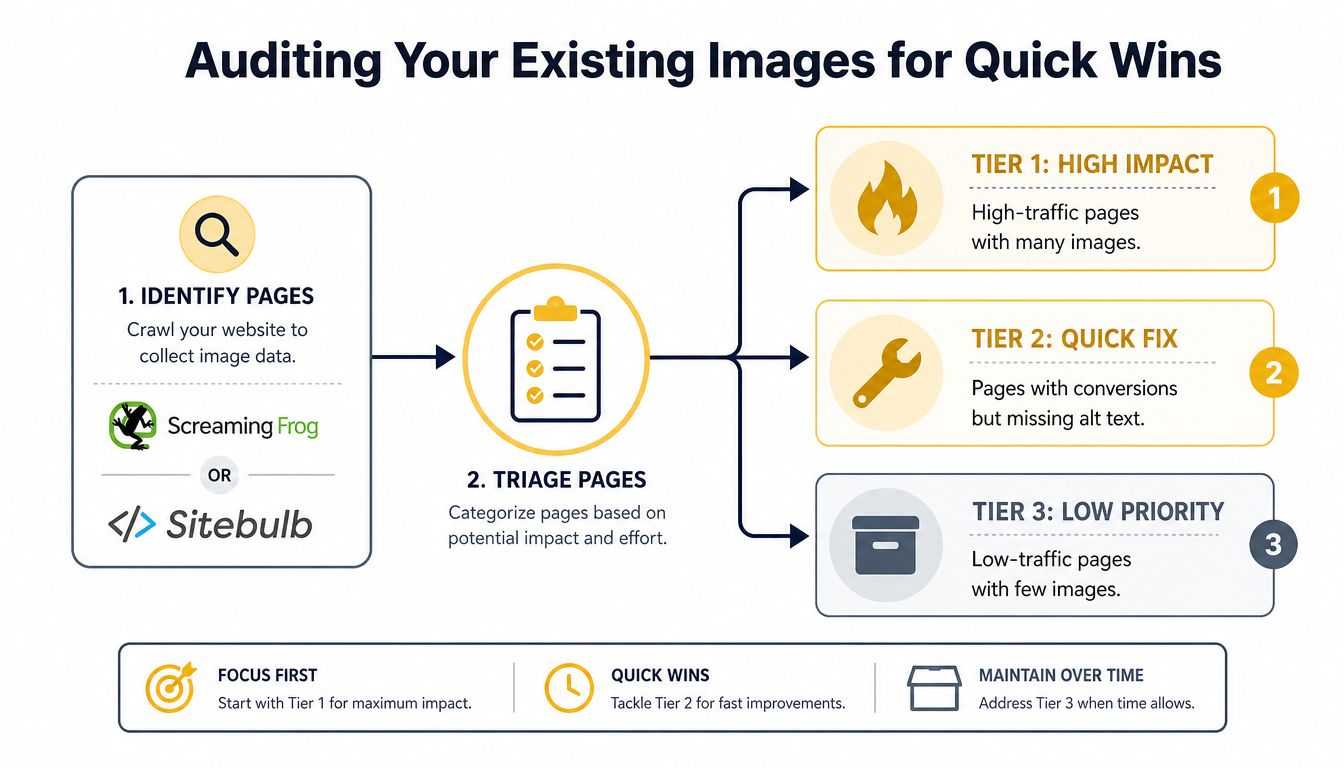
An image audit works better as triage than as a giant rewrite project. Export the pages and images you already have, then sort them by business value, traffic, conversions, and the number of visuals each page contains.
Screaming Frog and Sitebulb can surface image URLs and missing or empty alt attributes during a crawl. Ahrefs can help identify pages that attract organic visibility, while browser extensions such as Alt Text Tester let an editor inspect individual pages quickly. The tool matters less than creating a repeatable list of actions.
Three useful priority tiers
- High impact: Start with revenue pages, major service pages, and high-traffic articles that contain many images. Missing alt text on these pages affects more of your active customer journey.
- Quick fix: Next, handle pages that convert visitors but contain obvious blanks, generic labels, or repeated descriptions. These often need editing rather than template development.
- Low priority: Leave old, low-traffic pages with few images until the important inventory is clean. Keep them in the backlog so they don't disappear from the process.
Create a spreadsheet with the page URL, image URL, current alt text, image purpose, recommended rewrite, page value, and owner. Begin with your top 20 product or landing pages, then work through blog archives and supporting templates. The exact order should follow your business priorities, not the crawl order.
Red flags and their fixes
Identical alt text across product variants usually means the editor copied one field across the catalog. Rewrite each value around the distinguishing visual detail. Keyword-stuffed descriptions should become natural sentences that describe the image first. Missing alt text on a strong-performing page deserves immediate attention, especially when the image supports product selection or explains the service.
For broader implementation ideas, use Up North Media's guide to optimizing images for the web as a related internal reference. After the first pass, recrawl the site and spot-check the published HTML, because a CMS can overwrite or omit values during template rendering.
Putting It All Together for Your Site
A small-business service site and an e-commerce catalog need different starting points.
For a service site, prioritize images that demonstrate the service, introduce the team, identify locations, or support trust on conversion pages. Write descriptions around the action or evidence shown. Decorative icons can use empty alt values, while diagrams and screenshots need a short description plus visible explanatory text when the visual carries complex information.
For e-commerce, begin with primary product images, variant images, category visuals, and comparison content. Make each description specific enough to distinguish color, material, perspective, and product type. Don't use the same product title for every photograph.
AI and multimodal search systems increasingly work with text and visual signals together. Recent 2026 image SEO guidance highlights alt text as input for AI readability and visual understanding, while recommending empty alt for decorative assets, concise descriptions for informative images, and text alternatives for infographics, as discussed by Mavik Labs' 2026 image SEO guidance. That doesn't make alt text a prompt field. It makes accurate context more valuable.
Use this 30-day sequence:
- Week one: Fix images on revenue and conversion pages.
- Week two: Create CMS templates and editorial rules for new uploads.
- Week three: Crawl the site, review duplicates, and repair high-priority archives.
- Week four: Monitor image visibility and landing-page behavior in Search Console, then refine descriptions where the page context has changed.
Structured data can support broader page understanding, so review Up North Media's schema markup guide for SEO alongside your image work. Alt text won't replace strong content, useful products, or accessible design, but every accurate description becomes a durable asset for users and retrieval systems.
Up North Media helps businesses audit image metadata, improve accessible SEO workflows, and build scalable websites and web applications that support search and conversion goals. Visit Up North Media to discuss an image audit, SEO strategy, or implementation plan for your site.